
STUDIO
Five controls.
Fifteen crosshairs.
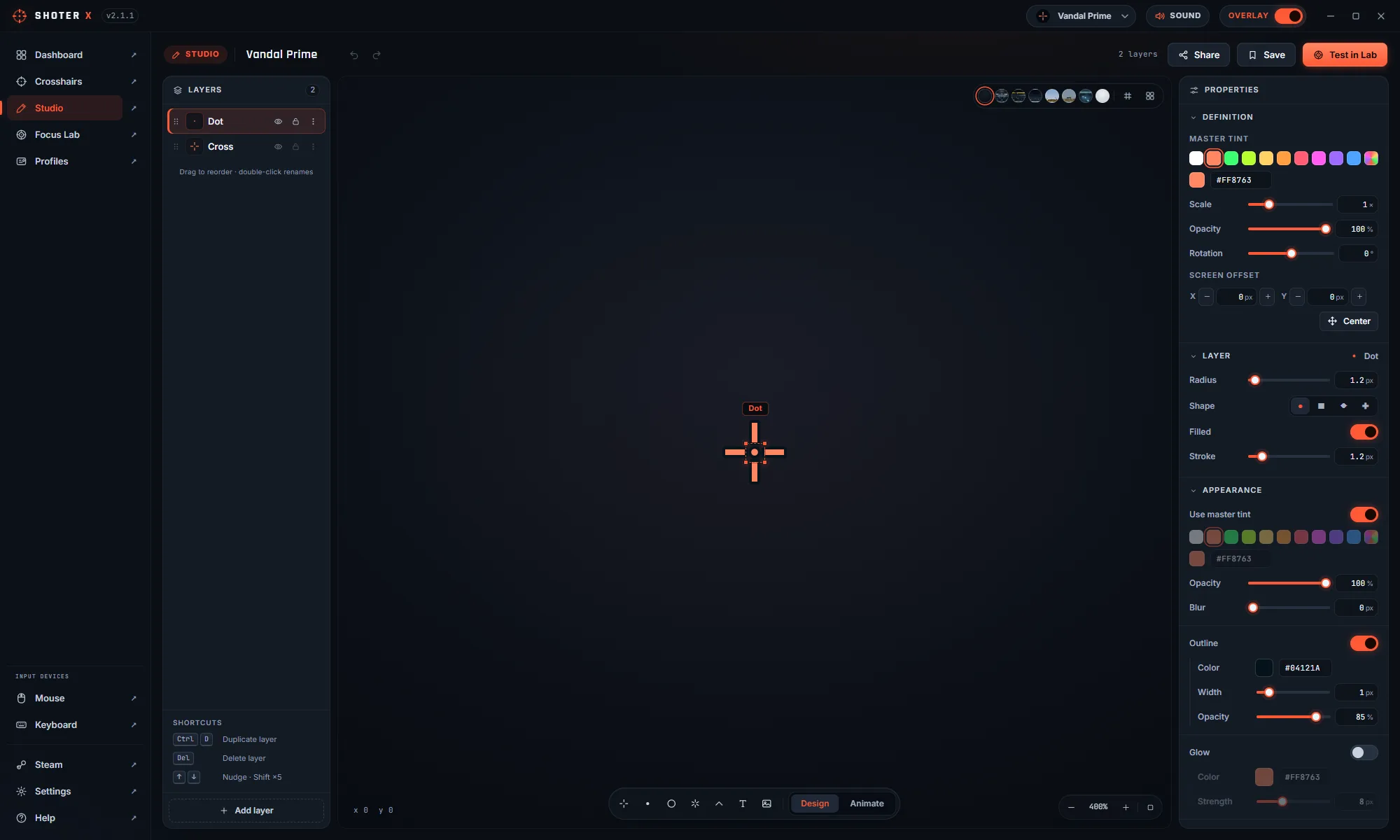
The Studio is a numeric editor: you type a value and the reticle changes. Below, one control changes at a time.
Canvas units, not pixels: 1 unit = 1 screen pixel at overlay scale 1.0
Gap
How far each arm starts from the exact aim point, in canvas units.
A solid plus. Easiest to find, but the arms cover the pixel you are aiming at.
The usual compromise: the centre is clear and the shape still reads as one crosshair.
A wide deadzone. Nothing hides a distant head — but at a glance it reads as four marks, not one.
Length
How long each arm is past the gap.
Short arms stay out of the way and suit small, close targets.
Long enough to catch your eye when the screen is busy.
Reaches well past the target. Useful as a horizon reference, distracting for tap-firing.
Thickness
Arm width. This is the single biggest lever on how much screen the crosshair eats.
A hairline. Precise, and the first thing to disappear against a noisy texture.
Visible on every background without hiding anything behind it.
Impossible to lose, and it covers roughly a head at medium range.
Outline & glow
A dark under-paint and an optional halo — this is what keeps a crosshair readable on a white wall.
Clean on dark maps, and effectively invisible on snow or a lit skybox.
A dark silhouette behind the paint. Costs nothing and works on every background.
A coloured halo. Loud, and genuinely the only thing that survives a bright explosion.
Layers
A design is a stack. Each layer keeps its own colour, size, outline and firing behaviour.
Just the cross.
Add a white dot: a second colour means the centre never blends into the arms.
Add a ring for a size reference. Layers render bottom-up, so the dot stays on top.
CROSSHAIR SHOOTER X / LIBRARY
Or start from one that already works.
These examples change a single value at a time on purpose. The built-in library is the opposite: complete designs where the numbers were chosen together. Copy one, then move a control and see what breaks.
Open the crosshair library